

SQL nodes
SQL nodes query your data source with explicit SQL code. They take no input nodes, but they can reference other nodes on the canvas by name. Create a SQL node by clicking on the toolbar. Or, select an existing node and click New SQL node on the new node toolbar floating to the right.
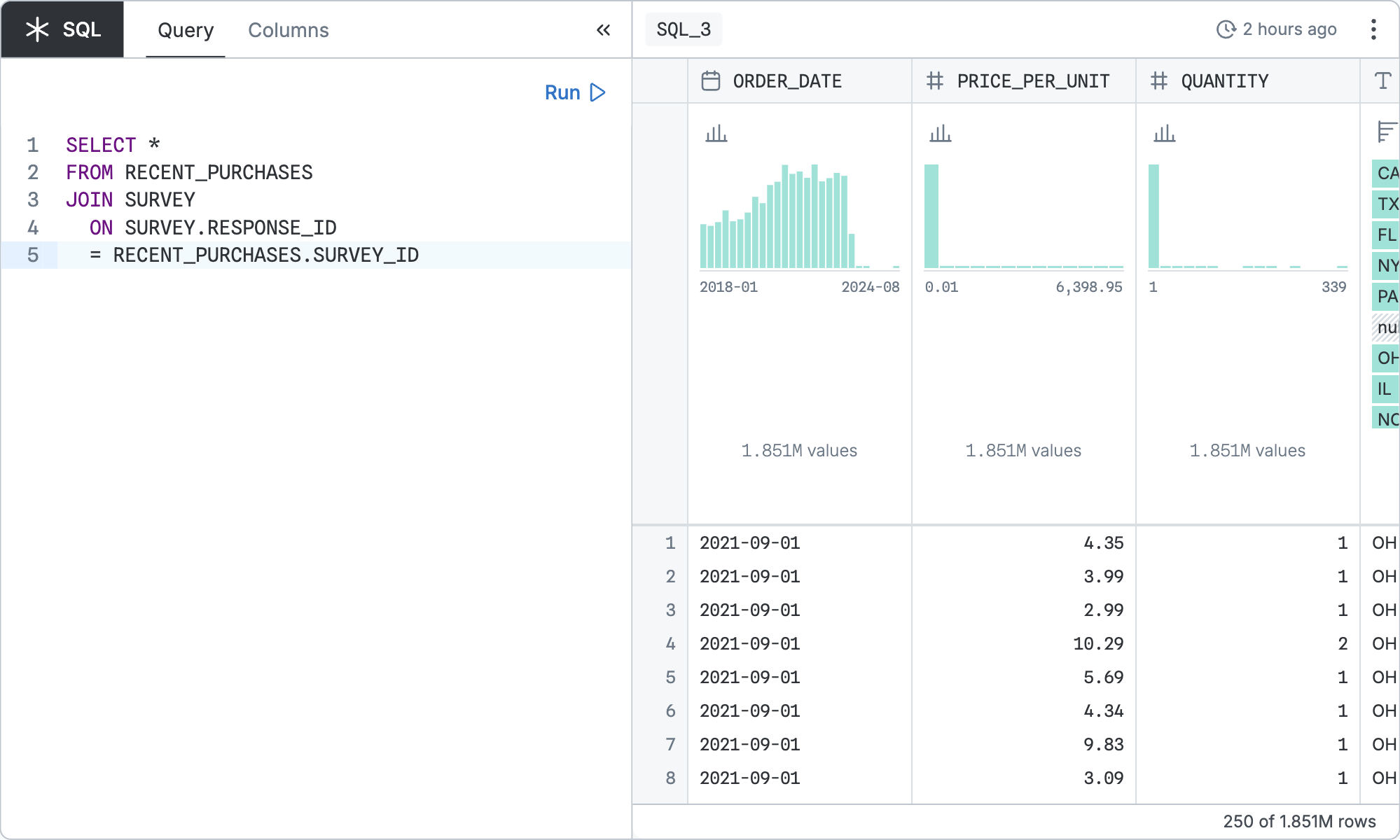
Configuration
The base query is configured by writing a SELECT statement to be run against your data source in its dialect. The statement can refer to nodes on the page as if they were database tables.
That base query can be refined by the standard controls shared by all table nodes.
SQL equivalent
If you clicked “Copy SQL” in the node menu of the node pictured above, you’d get:
WITH
  "RECENT_PURCHASES" AS (…),
  "SQL_3_sql" AS (
    SELECT *
    FROM "RECENT_PURCHASES"
    JOIN SURVEY
      ON SURVEY.RESPONSE_ID
      = RECENT_PURCHASES.SURVEY_ID
    )
SELECT
  "ORDER_DATE",
  "PRICE_PER_UNIT",
  "QUANTITY",
  …
FROM "SQL_3_sql"
In the real version, the first … would show the SQL code for the referenced node named RECENT_PURCHASES. The other referenced table, SURVEY, is in the database, so it does not get expanded into a CTE. This means the “Copy SQL” code is self-contained and portable; it could run directly on the data source.
The second … would materialize all displayed columns of the table.
Examples
Query your database
SQL offers more flexibility than other canvas nodes, allowing for more complex filtering:
SELECT * FROM USERS WHERE name LIKE 'Chloe%'The query must be a valid SELECT statement. Any other statement (such as INSERT, PRAGMA, COPY, or CREATE) results in a syntax error.
You can also address the table by its full qualified name:
SELECT * FROM "database"."schema"."table"Query your canvas nodes
You can reference any node on your canvas by name as if it were a table in the source database, including joining database tables and canvas nodes. For example, you could query a chart node named SELECTED_USERS:
SELECT * FROM SELECTED_USERSThe referenced node is transformed into a common table expression (CTE), as you can see by clicking “Copy SQL”. The CTE includes filters and brushes applied to upstream nodes. As you brush a chart upstream, the CTE updates live.
INFO
A node takes priority over a table with the same name. You cannot create a node with the same name as an existing database table, but the database schema could change to conflict after the node was created. You can rename the conflicting node on the canvas, or qualify the database table (FROM "database"."schema"."table") to disambiguate.
Create a table of literal values
You can supplement your data source with a small table of literal values:
SELECT * FROM (VALUES
  ('Alice', '2023-01-02'::Date, 30),
  ('Bob', '2024-06-13', 42),
  ('Chloe', '2025-02-04', 76),
  ('Donna', '2025-11-22', 14)
) AS USERS (name, created, age)
Use functions specific to your data source’s dialect
The SQL node uses the source database’s SQL dialect. For example, to compute quantiles in a Snowflake database, you can call APPROX_PERCENTILE:
SELECT APPROX_PERCENTILE(body_mass_g, 0.95) FROM penguinsFor a similar operation, DuckDB uses APPROX_QUANTILE:
SELECT APPROX_QUANTILE(body_mass_g, 0.95) FROM penguinsDuckDB: Load data from a URL
If your data source is DuckDB, you can load data directly from a CSV or a JSON:
SELECT * FROM READ_CSV(
  'https://earthquake.usgs.gov/earthquakes/feed/v1.0/summary/2.5_week.csv'
  , ignore_errors = true)
Or, in the short-form syntax:
SELECT * FROM 'https://earthquake.usgs.gov/earthquakes/feed/v1.0/summary/2.5_week.csv'Generate random values
This query generates a normal distribution with the Box-Muller transform:
WITH pairs AS (
  SELECT random() AS u1, random() AS u2
  FROM range(1000)
)
SELECT sqrt(-2.0 * ln(u1)) * cos(2.0 * pi() * u2) AS r
FROM pairs