
Sharing
The work you do in a canvas can be shared by exporting data and images from nodes; by linking to any part of the canvas as a “presentation view”; or by embedding any part of the canvas into another webpage.
For working together on the canvas, see collaboration.
Exports
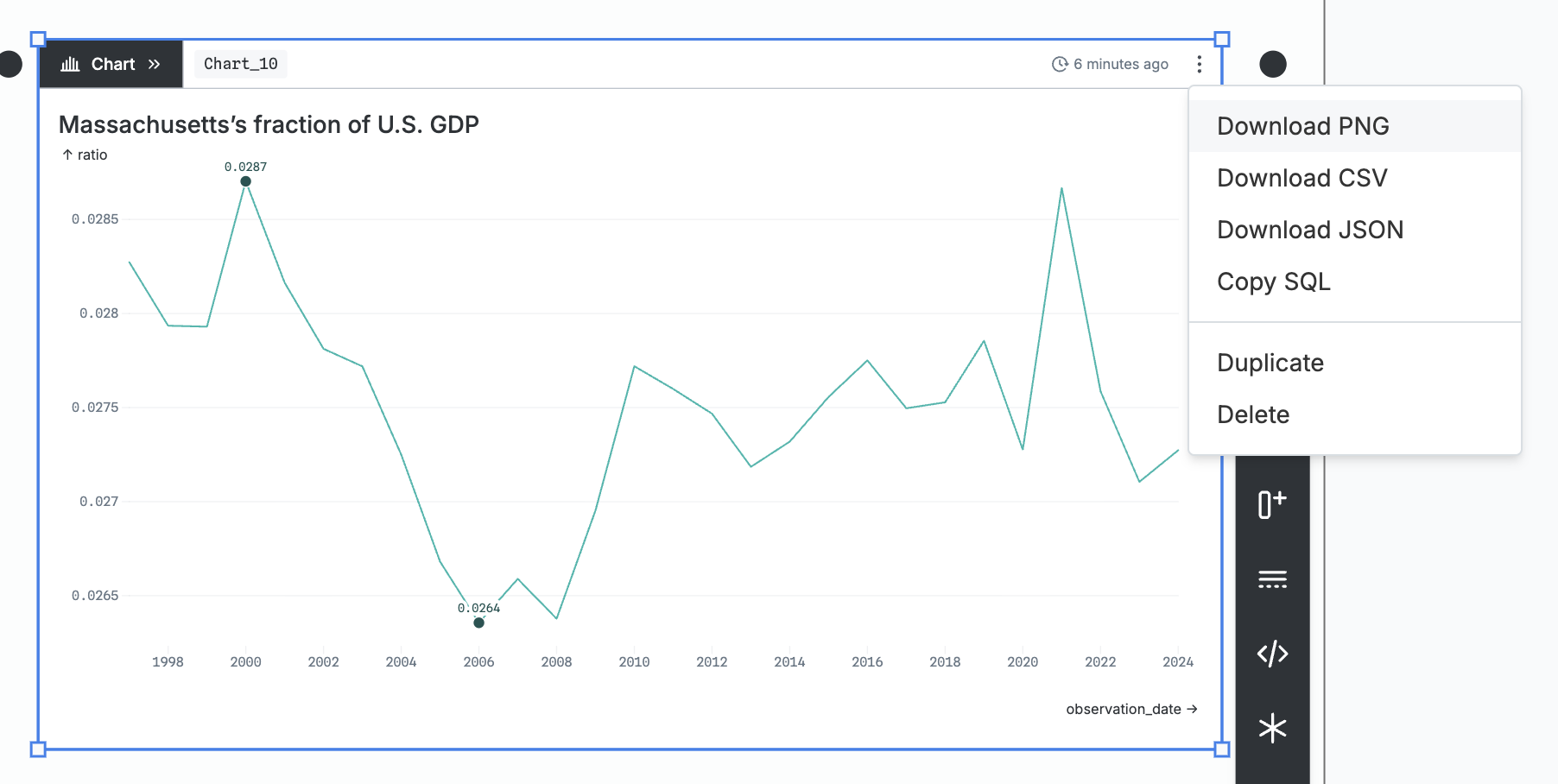
You can download the first 100,000 rows of the node’s output data as CSV or JSON. To recreate the full output data, you can also copy the node’s query as SQL, including any filters, sorts, or other transformations you’ve applied to the table. (Note that JavaScript nodes have no output data.)
For chart nodes, you can also download an image of the chart as a PNG.
Deep links
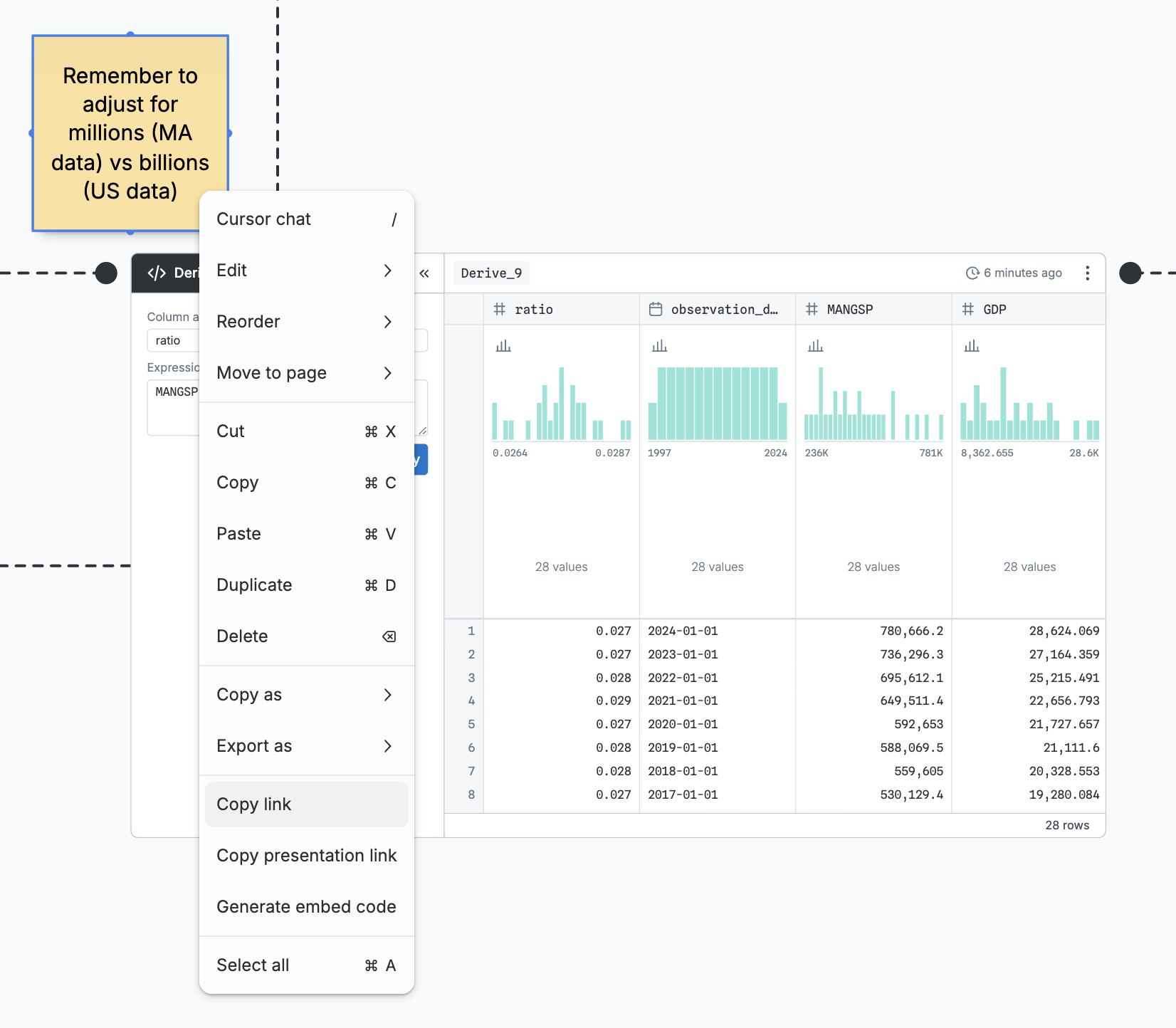
You can link directly to your current selection (a node, a frame, multiple shapes) by right-clicking the canvas and clicking “Copy link”. When people go to that link, the viewport will jump straight to your selection.
Presentation links
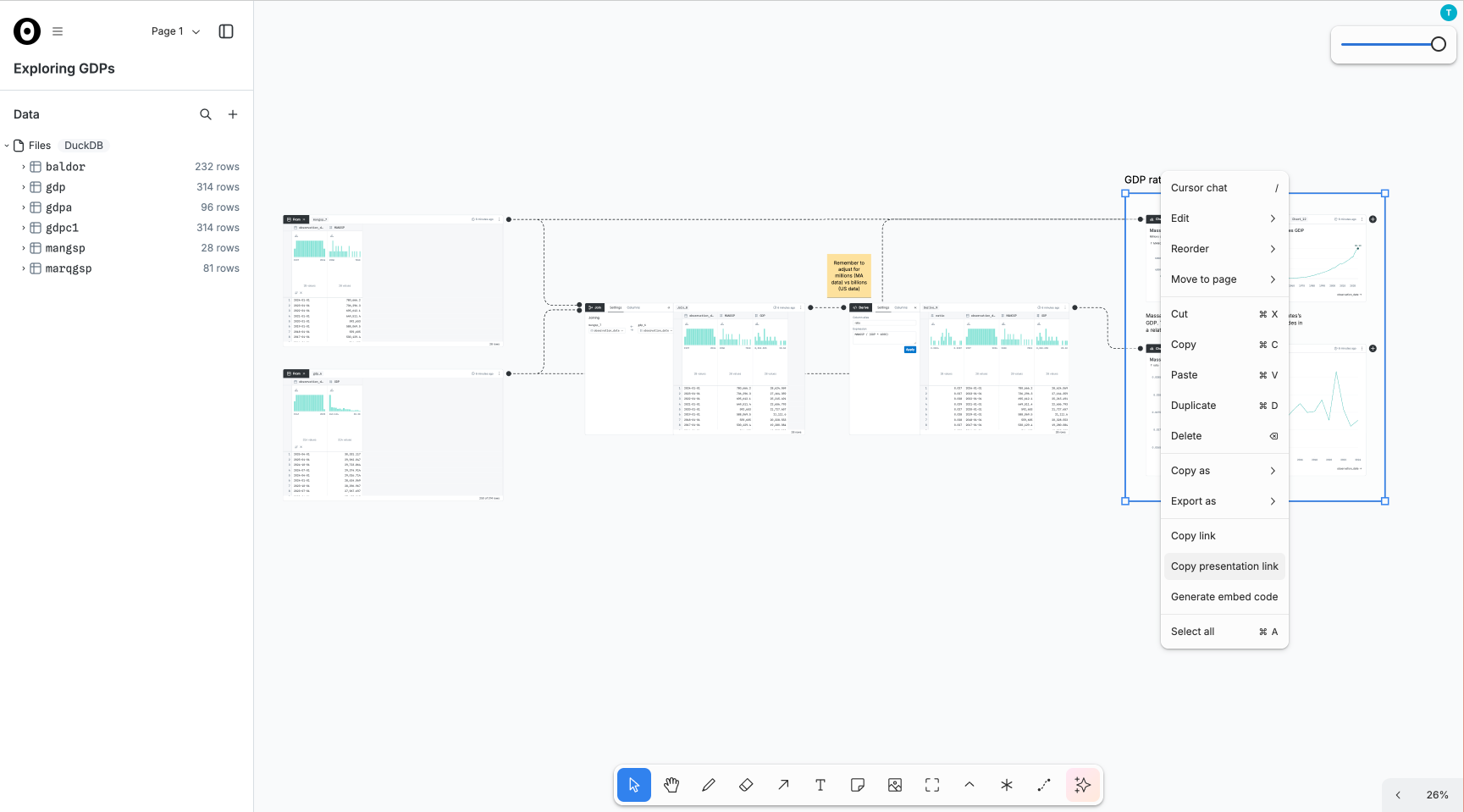
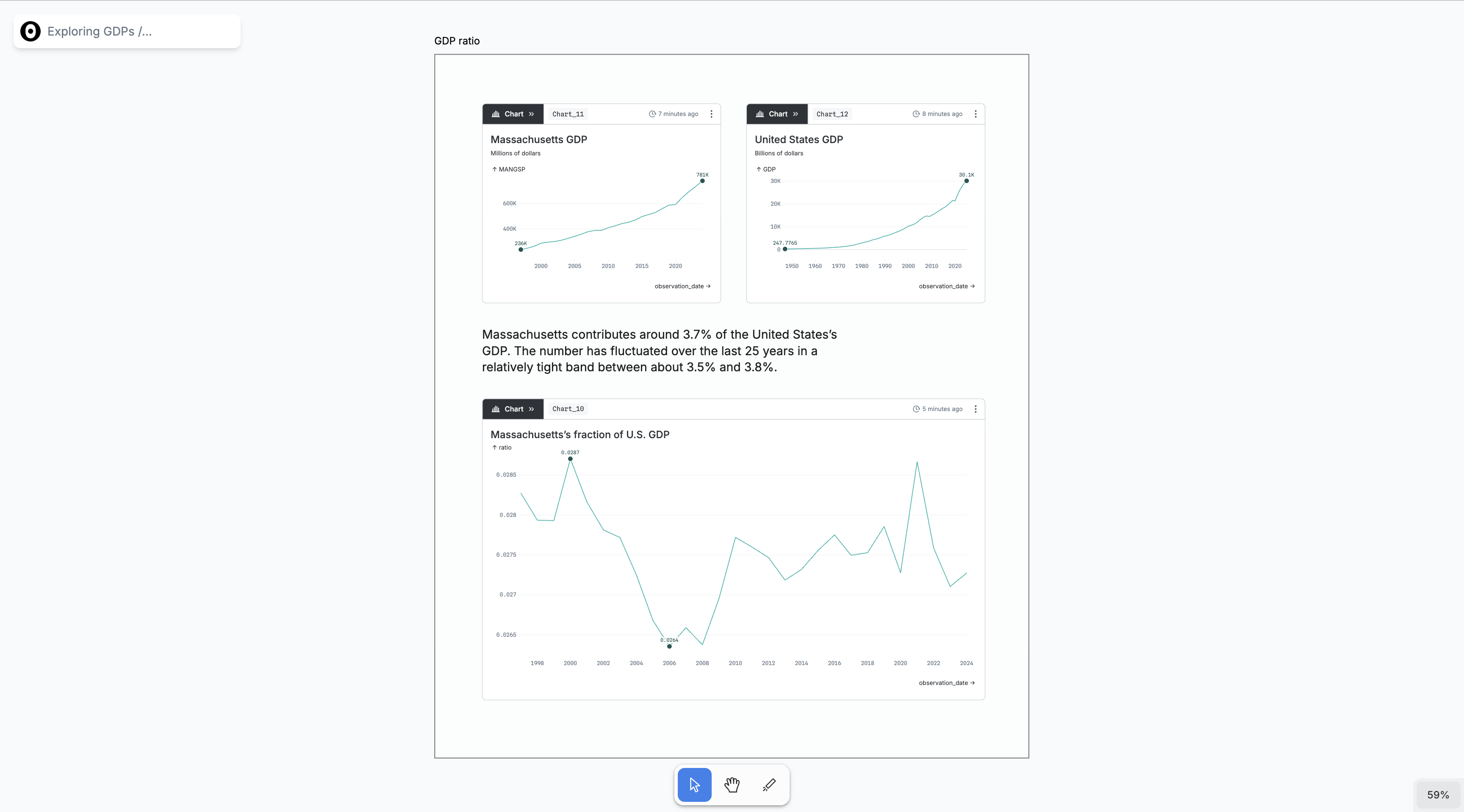
You can create a link to present the current selection by right-clicking the canvas and clicking “Copy presentation link”.
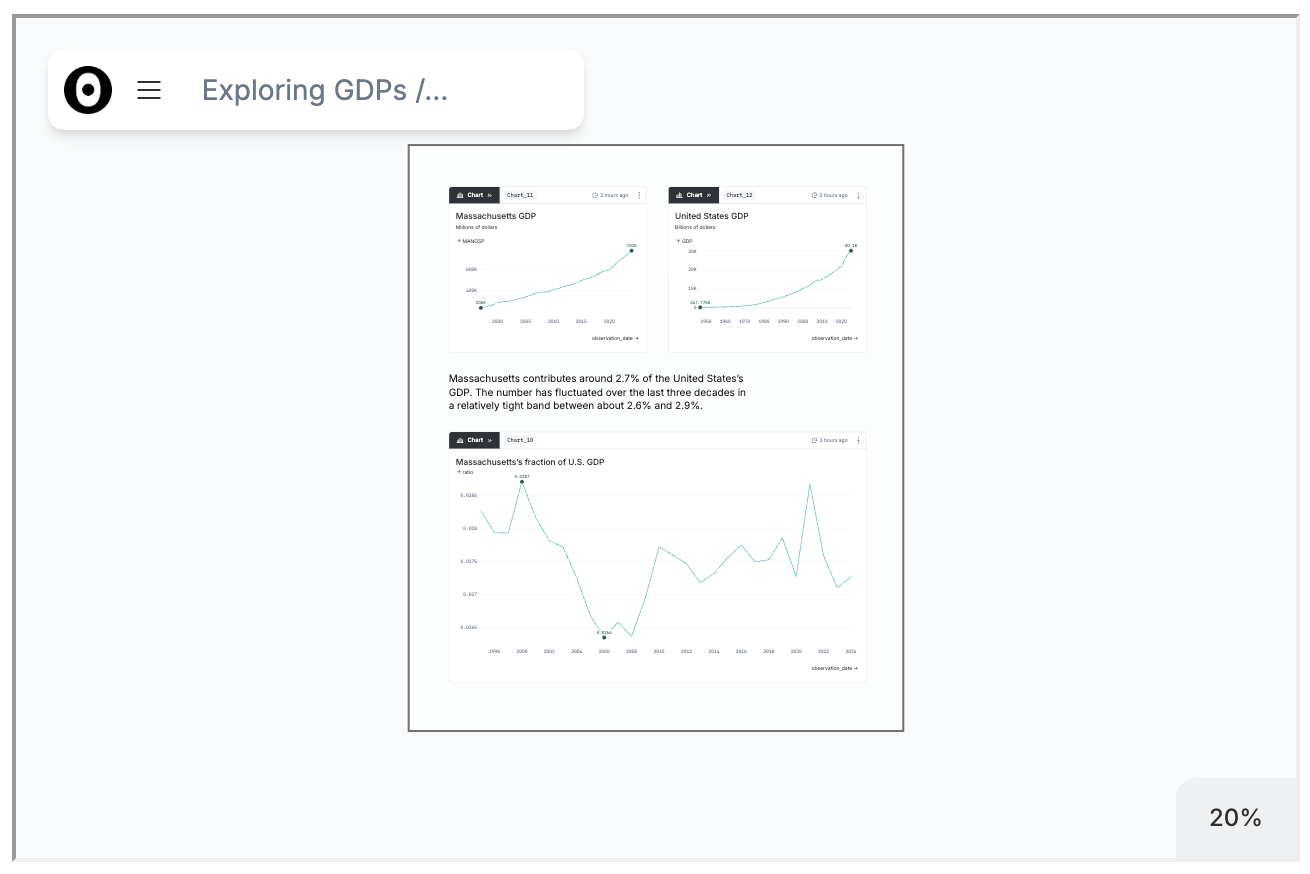
Presentations hide everything else on the canvas so you can focus people on just specific content. In this view, the only available tools are select, hand, and laser pointer. Presentation viewers can change filters and brushes, but none of their changes will be saved.
TIP
Presentation links do not restrict permissions. They offer convenience, not security. Anyone viewing the presentation link can still get back to the full canvas.
Embeds
You can embed the current selection as an interactive iframe by right-clicking and selecting “Generate embed code”.
WARNING
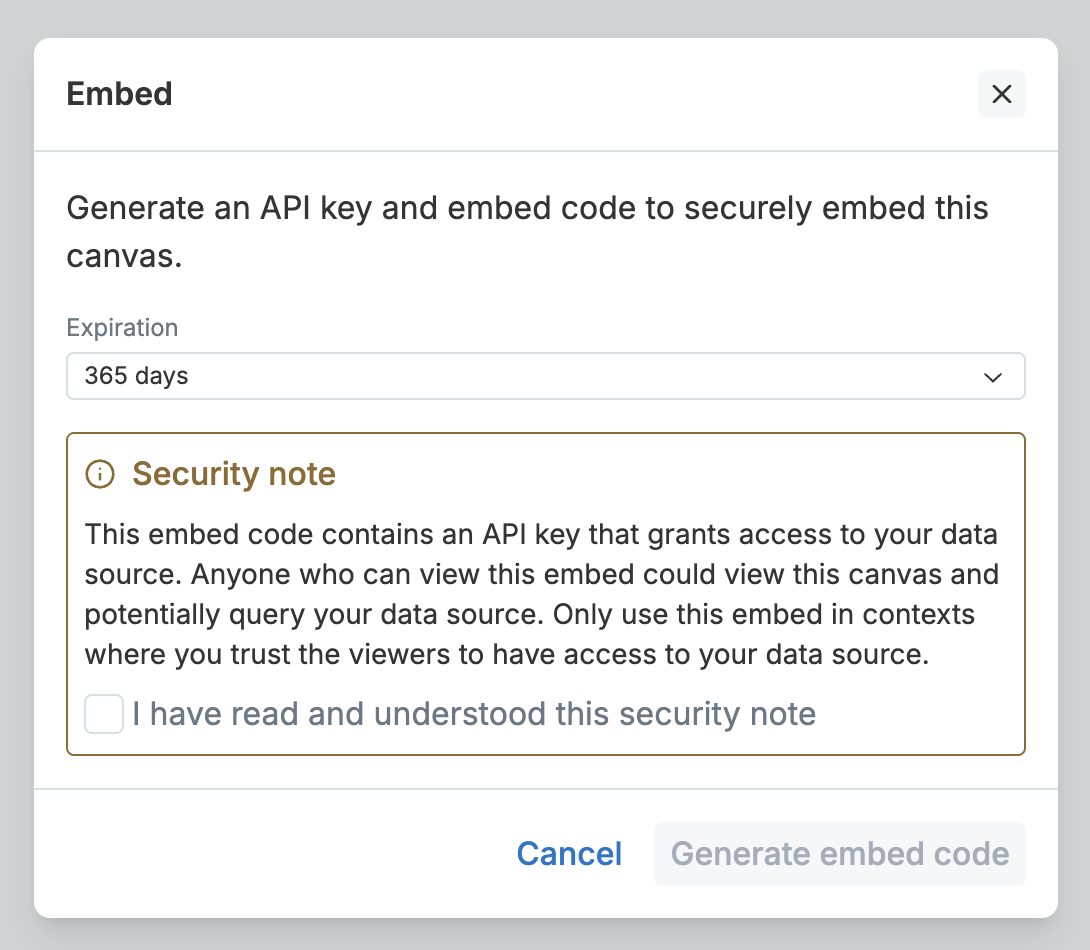
The embed code contains an API key that grants access to your data source. Anyone who can view the embed can view the canvas and potentially query your data source, including running different queries than you had constructed. Only use the embed in contexts where you trust the viewers to have access to your data source.
First, choose how long you want the embed code to be valid for, and confirm that you understand the security implications.
Then copy your embed code.
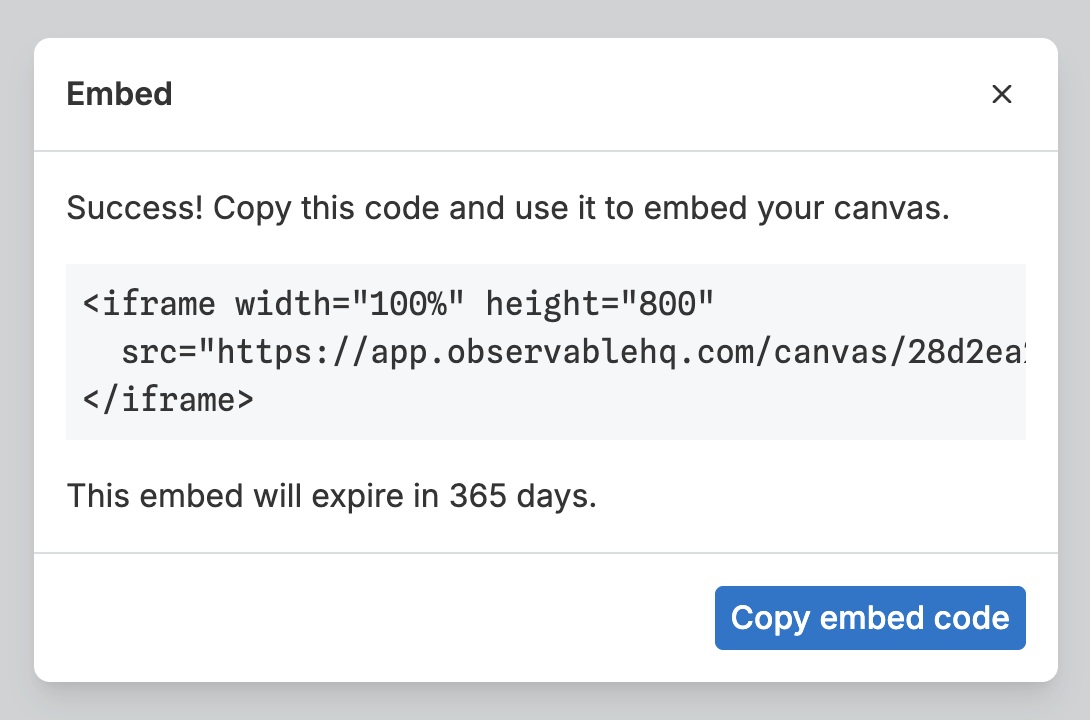
You can paste then embed code anywhere that supports HTML iframe embedding. Viewers will see your selection in a minimal view that hides all extraneous controls.